Create
Create and edit images
Describe an image and Fello AI makes it, or add your own photo and ask for changes.
On this page
Create an imageDescribe what you wantEdit your own photoChoose an image modelSave and shareGood to keep in mindFello AI can make pictures, not just write text. Describe what you want and an image model draws it. Or add your own photo and ask for a change, like a new background or a different style.
An image model is a different kind of AI model from the ones you chat with. It takes your description (and your photo, if you add one) and returns a picture instead of a reply. That's why images have their own switch: Imagine.
Create an image
- Open a chat and tap Imagine in the message bar. The chat switches to an image model.
- Describe the image you want.
- Send your message. The picture appears in the chat.
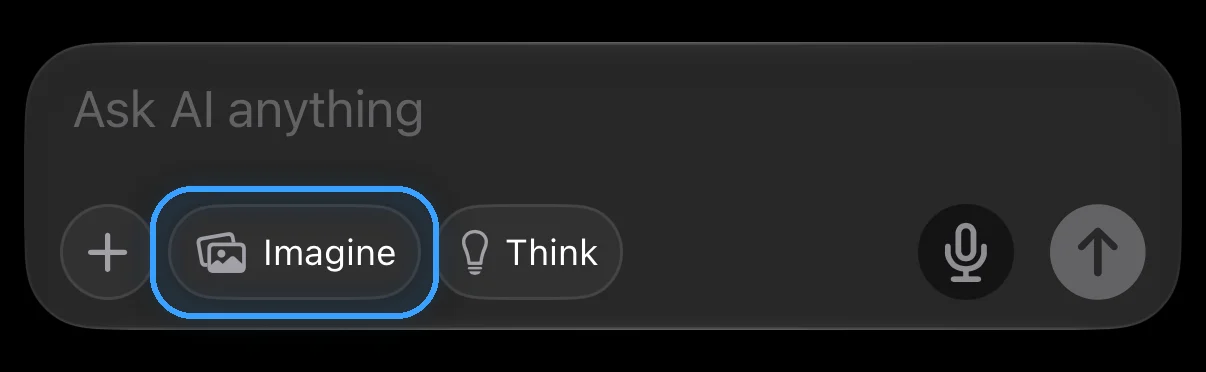
Tap Imagine again to go back to a chat model. Turning Imagine on turns off Skills and Thinking.
Describe what you want
The more you say, the closer the result gets to what you picture. A short description leaves the model to guess. Try to cover:
- Subject: what's in the picture, and what it's doing.
- Style: photo, watercolor, pencil sketch, 3D render.
- Light and mood: soft morning light, moody, bright and playful.
- Format: square, wide or tall (see the layout options below).
Compare "a cat" with "a ginger cat asleep on a sunny windowsill, soft morning light, watercolor". The second one gives the model a scene, a light and a style to work with.
If the first result isn't right, send a follow-up that changes one thing, like "make the light warmer".
- A cozy reading nook with a window, rain outside, warm lamp light, illustration
- A golden retriever wearing sunglasses on a skateboard, bright photo style
- A minimalist poster of a mountain at sunrise, flat colors
Edit your own photo
You can also start from a photo and describe the change you want. Good uses are restoring an old photo, swapping a background, restyling a portrait or removing an object.
- Turn on Imagine.
- Click + and choose a photo, or drag one into the chat or paste it. The button then reads Edit Image.
- Describe the change and send your message.
- Turn on Imagine.
- Tap +, then choose Photos or Camera.
- Describe the change and send your message.
For image work, you can only attach images. Adding a photo needs a subscription.
- Restore this old photo and fix the scratches
- Replace the background with a beach at sunset
- Turn this portrait into a watercolor painting
Choose an image model
Open the model list and switch it from Chat to Images. The list includes GPT Image, Nano Banana, Seedream, FLUX, Grok Imagine and more, and it's updated on our side. Each row shows Quality and Speed, so you can pick a fast model for quick ideas and a higher-quality one for the final version.
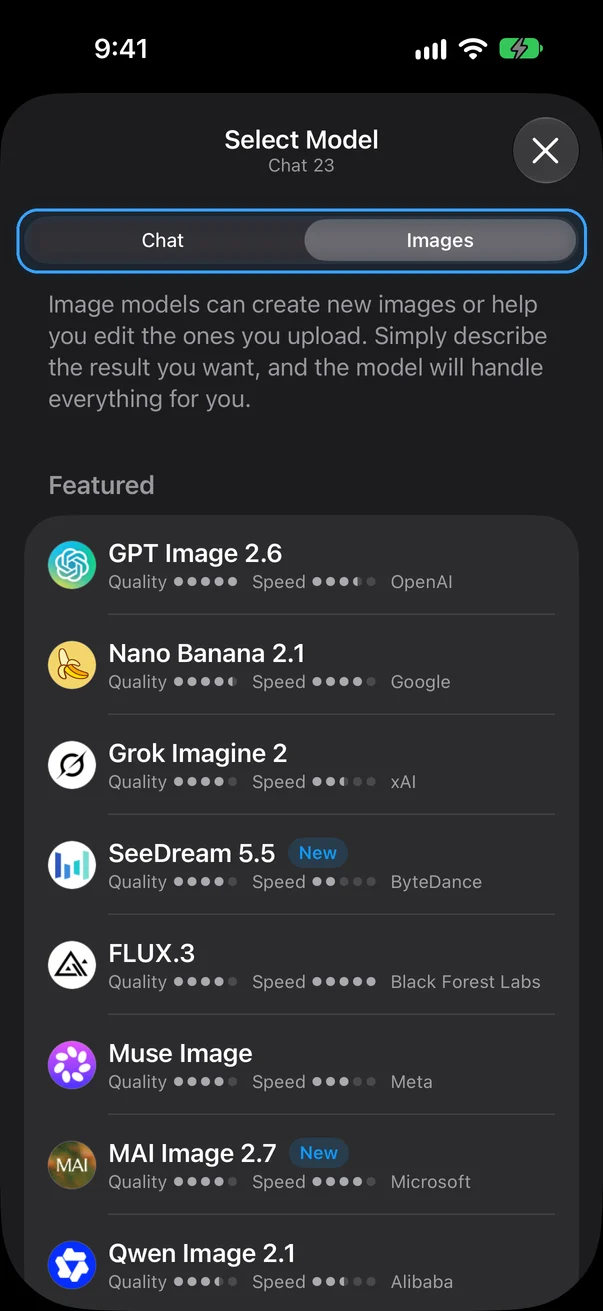
On Mac, a Layout menu appears while Imagine is on. Choose Auto, 1:1 (Square), 4:3 (Landscape), 3:4 (Portrait), 16:9 (Widescreen) or 9:16 (Tall). On iPhone and iPad, the layout is always Auto.
Save and share
- Hover over the image.
- Click Download Image to save it, or View Full Size to look closer.
- You can also right-click the image and choose Download or Copy.
- Under the image, tap Save image to open the share sheet, or View full screen to look closer.
- You can also press and hold the image and choose Share or download or Preview.
Good to keep in mind
- Daily limit: there's a limit on how many images you can generate each day. When you reach it, the message tells you it resets in 24 hours.
- Photo editing needs a subscription.
- Imagine turns off Skills and Thinking until you tap it again.