Start here
Choose your AI model, or let Auto pick
Fello AI has models from OpenAI, Anthropic, Google, xAI and more. Use Auto, or pick the one you want for each chat.
On this page
Let Auto pickChoose a model yourselfAsk another model the same questionChoose the model new chats start withGood to keep in mindEvery chat in Fello AI runs on one AI model, and you can change it at any time. If you don't want to think about it, leave it on Auto and Fello AI picks a model for each message.
Let Auto pick
Auto is the first option in the model list. It looks at each message and sends it to the model it expects to answer it best. That makes it a good default when you're not sure which model to use.
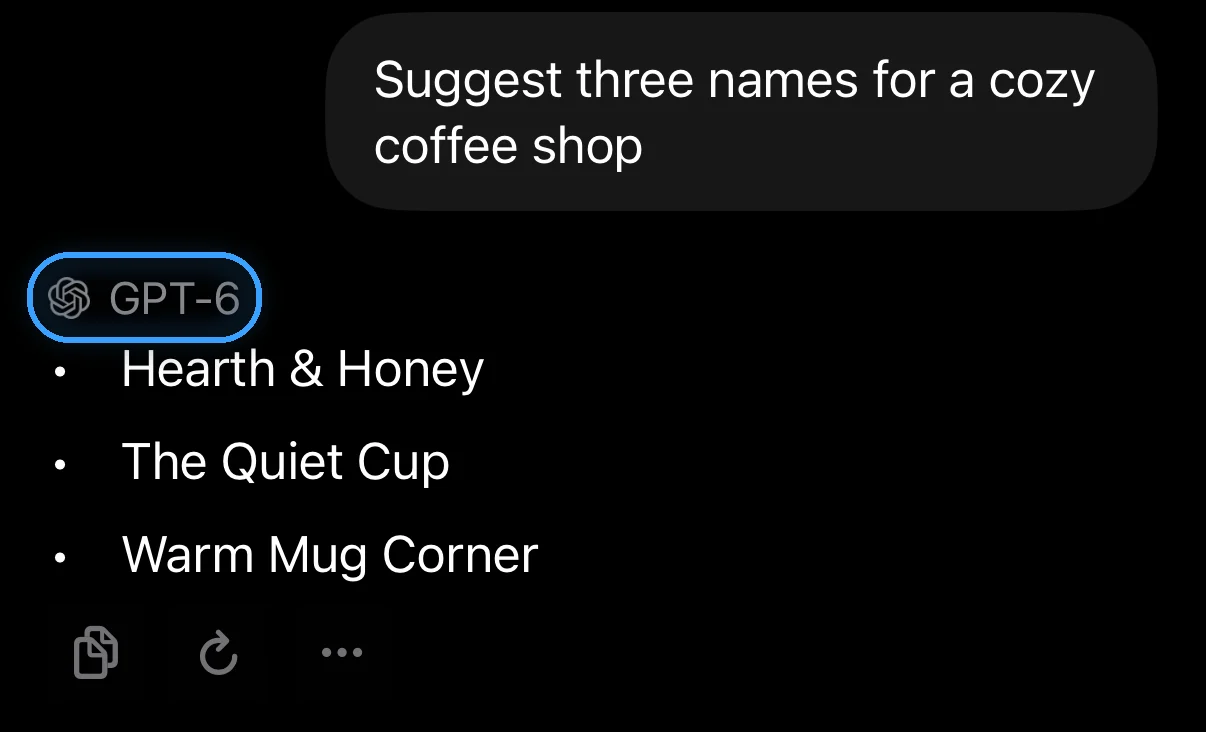
While the chat is open, the name of the model Auto chose appears in small grey text above each reply.
Choose a model yourself
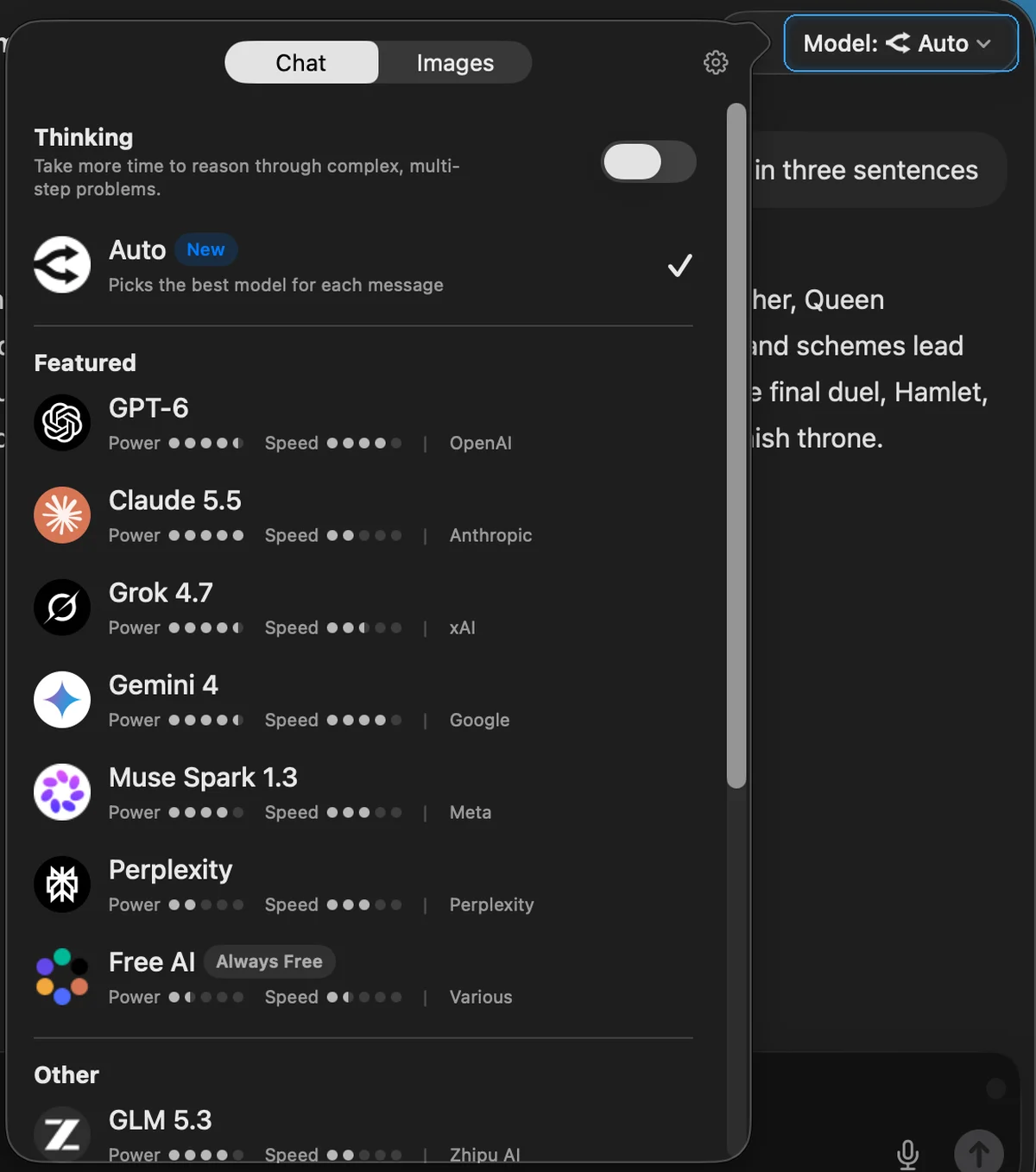
- In a chat, click Model: in the toolbar.
- Pick a model from the list. Featured models are at the top, the rest are under Other.
- Send your message. It goes to the model you picked.
- In a chat, tap the model name at the top of the screen.
- In Select Model, tap a model. Featured models are at the top, the rest are under Other.
- Send your message. It goes to the model you picked.

Each model shows two ratings: Power for how capable it is and Speed for how fast it answers. When a model can reason step by step, a Thinking switch appears at the top of the list. Turn it on for harder, multi-step questions.
The model is saved with the chat, so when you come back to a chat later, it opens with the model you used.
Ask another model the same question
Not happy with an answer, or curious what another model would say? Ask again with a different model and compare the two.
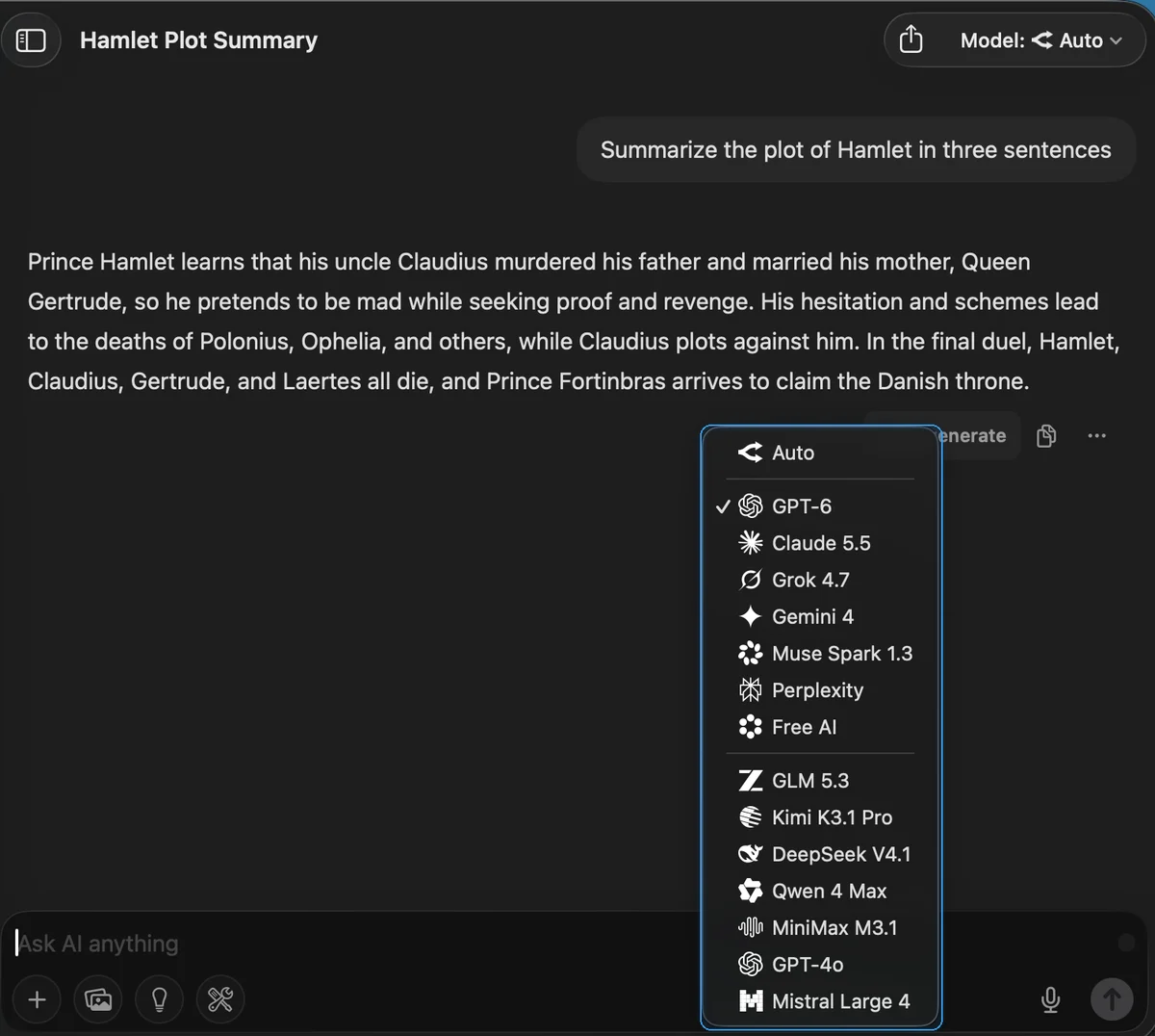
- Under the latest reply, hold or right-click Regenerate.
- Pick a model. The new answer appears in place of the old one.
- Use the arrows (‹ 1 / 2 ›) to switch between answers, or click Compare Versions to see them side by side.
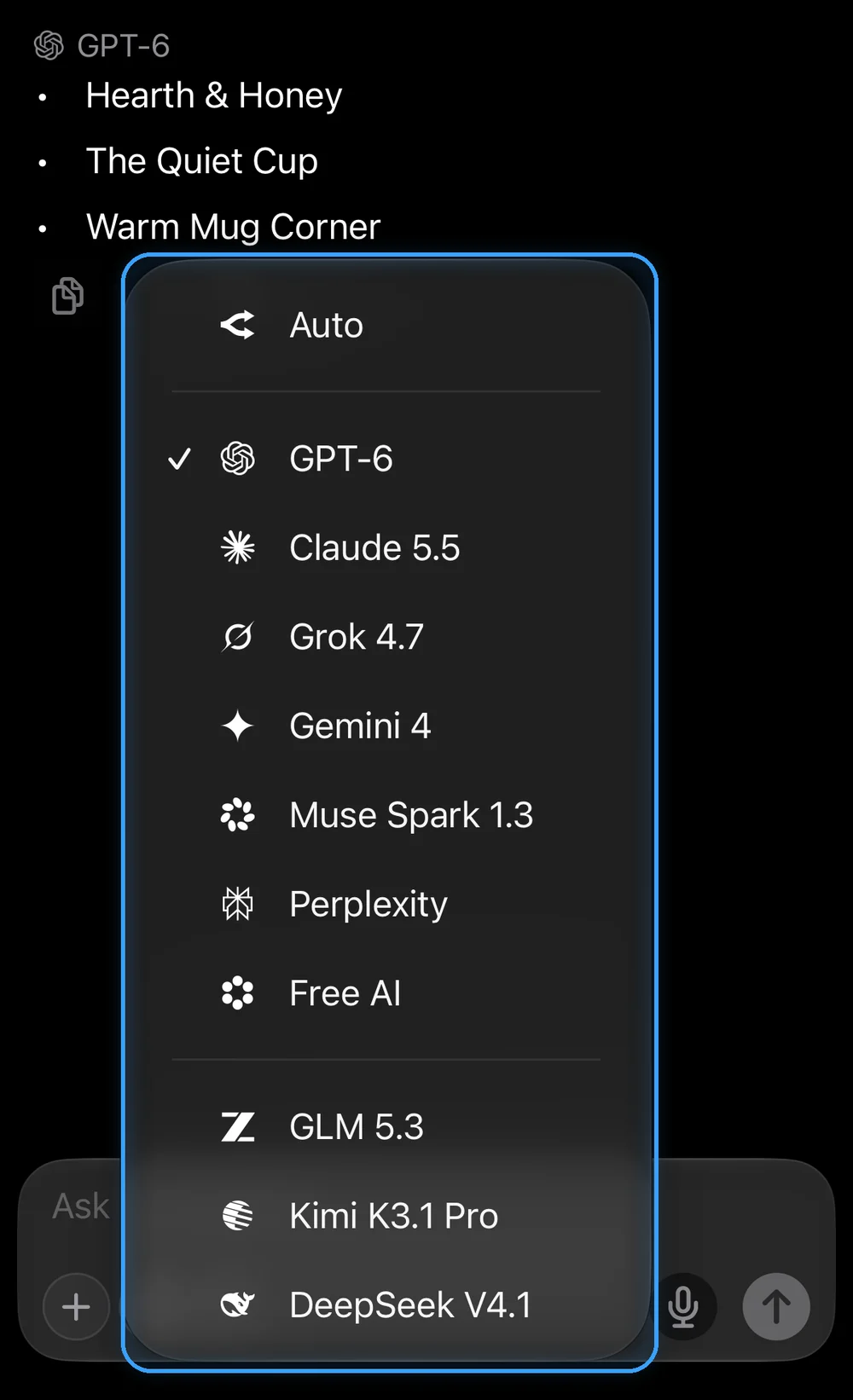
- Under the latest reply, press and hold the regenerate button.
- Pick a model. The new answer appears in place of the old one.
- Use the arrows (‹ 1 / 2 ›) to switch between answers, or tap Compare Versions to see them side by side.
This doesn't change the model of the chat. Your next message still goes to the model you picked before.
Choose the model new chats start with
Open Settings → Models and choose a Starting Model. In the same tab, Quick Access Shortcuts sets the models shown as buttons on the empty chat screen. You can also right-click one of those buttons and choose Customize Shortcuts….
Open Settings, and under Personalize choose a Default Model.
Good to keep in mind
- Free plan: you can use Premium models until your free questions run out. After that, Fello AI switches the chat to Free AI, which is always free.
- New models appear on their own. The list is updated on our side, so you don't need an app update to get a new model.
- Images have their own tab. Switch the list from Chat to Images to pick a model for creating or editing pictures.
Wondering which model is best at what? See our comparison of the best AI models.