Organize & customize
Choose how Fello AI talks to you
Pick the tone and style Fello AI uses in every chat, or describe your own once and stop repeating yourself.
On this page
Choose a styleDescribe your own styleA different style for one projectGood to keep in mindIf you keep typing "keep it short" or "explain it simply", you can tell Fello AI once instead. AI Style sets the tone and format of every answer, in every chat. You can pick a ready-made style or write your own instructions.
Choose a style
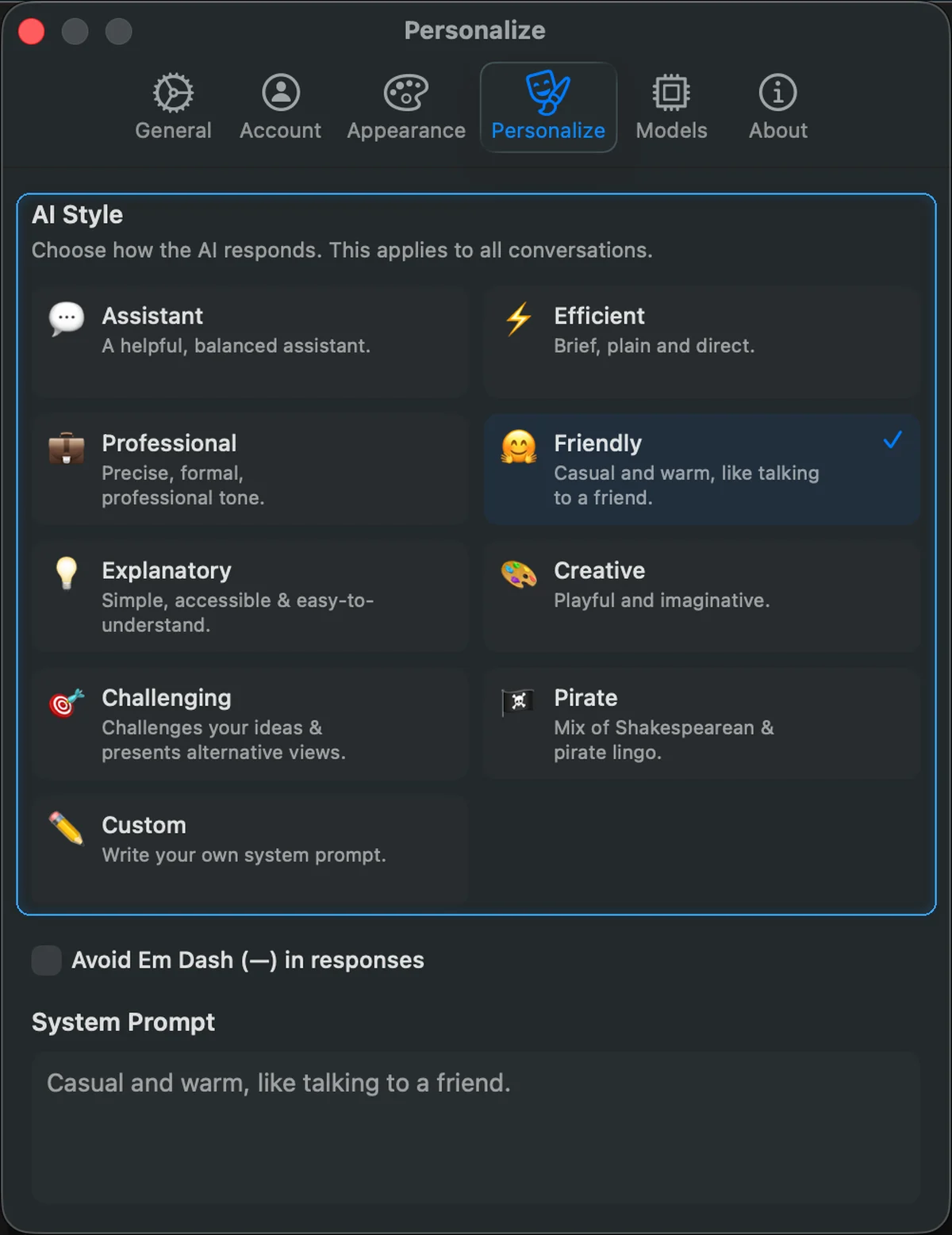
- Choose Fello AI → Settings… (or press ⌘,).
- Open the Personalize tab.
- Under AI Style, pick a style.
- In the chats list, tap the gear (Settings).
- In the Personalize section, tap AI Style. The row shows your current style.
- Pick a style.
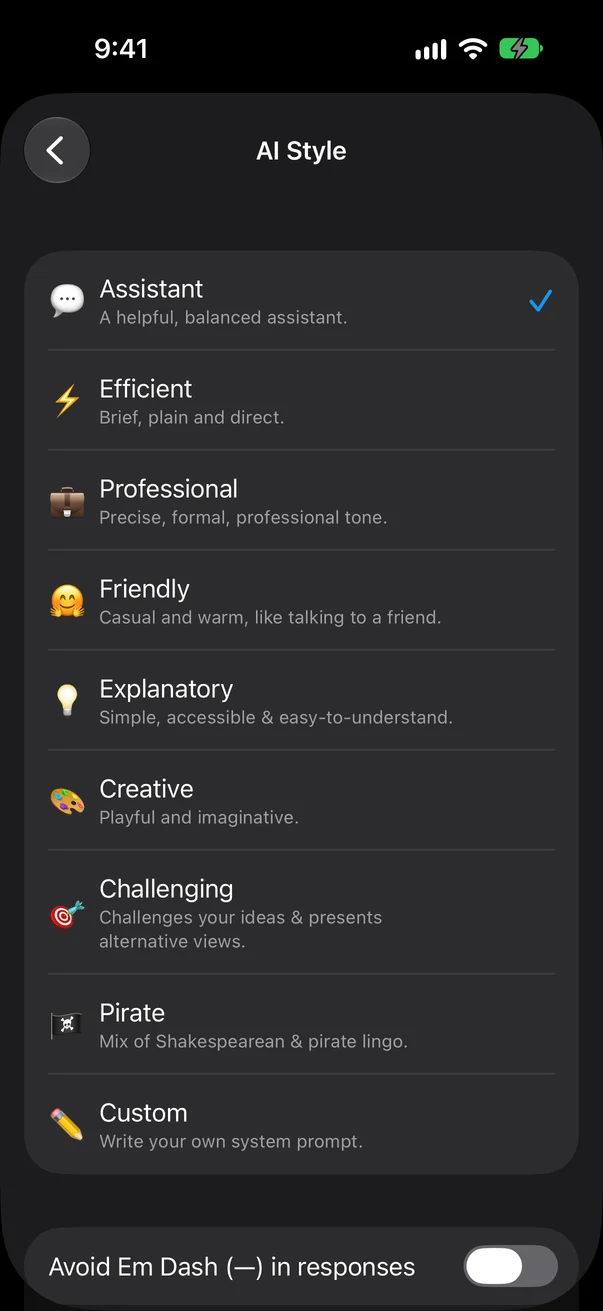
The new style applies from your next message, including in chats you already have. These are the styles:
- Assistant: a helpful, balanced assistant. This is the default.
- Efficient: brief, plain and direct.
- Professional: precise, formal, professional tone.
- Friendly: casual and warm, like talking to a friend.
- Explanatory: simple, accessible and easy to understand.
- Creative: playful and imaginative.
- Challenging: challenges your ideas and presents alternative views.
- Pirate: a mix of Shakespearean and pirate lingo.
- Custom: write your own system prompt.
The ready-made styles can't be edited. If you don't like how they answer, use Custom.
Describe your own style
With Custom, you describe in your own words how Fello AI should talk to you. Fello AI follows them in every chat, so you only describe yourself and your preferences once.
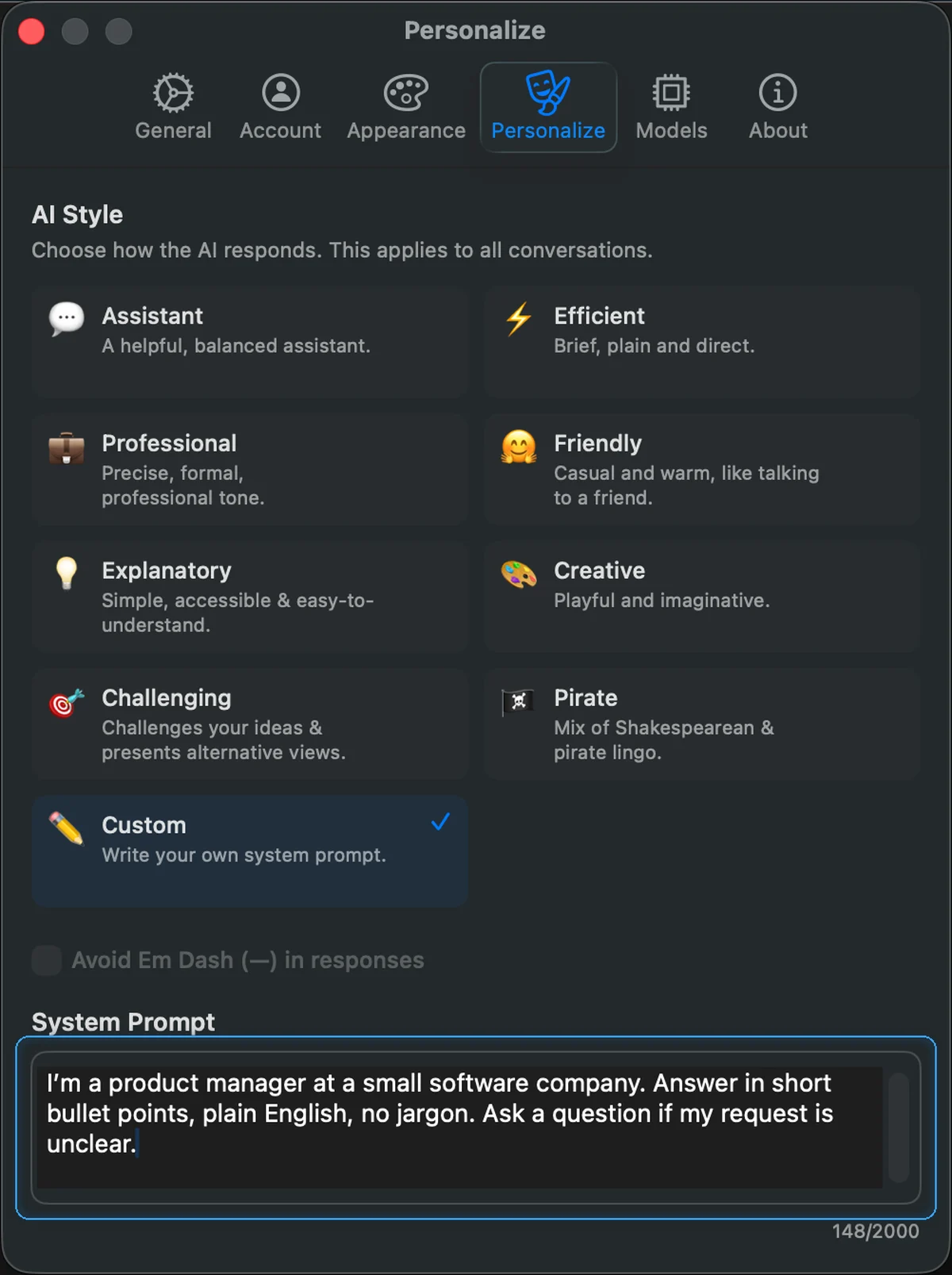
- In Settings → Personalize, under AI Style, choose Custom.
- In the System Prompt box, describe how you want answers to sound and look.
- In Settings → Personalize → AI Style, choose Custom.
- In the System Prompt box, describe how you want answers to sound and look.
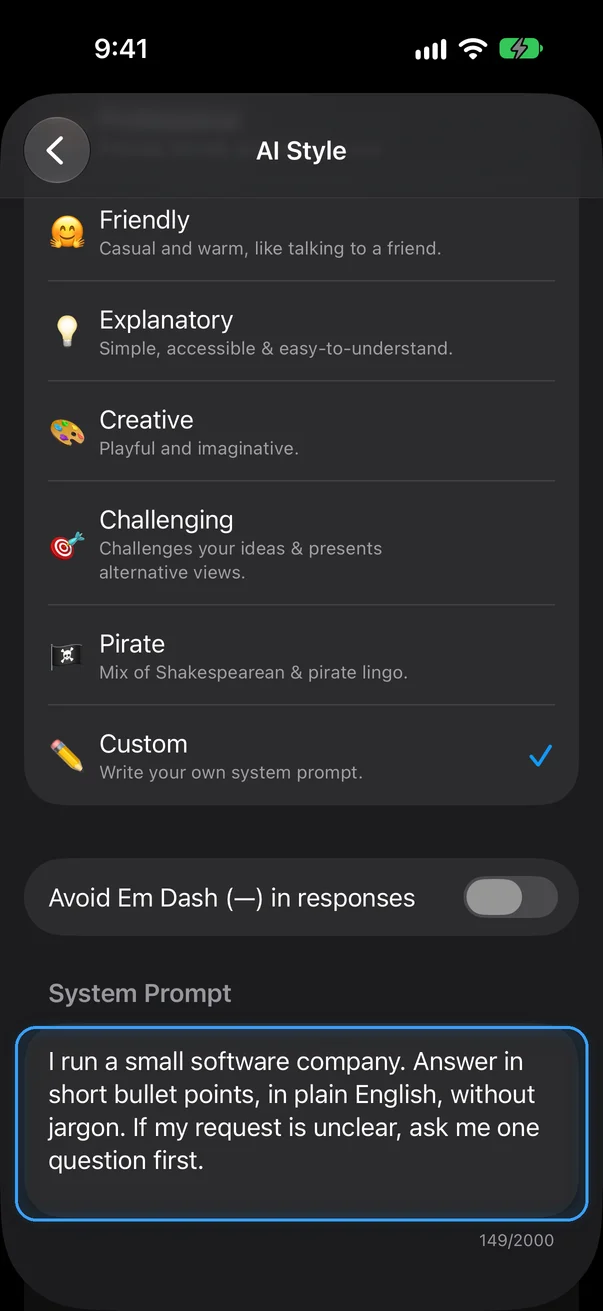
A good prompt covers three things: who you are, how you want answers (length, format, tone), and what to avoid. The box takes up to 2000 characters, and a counter shows how many you've used. Anything over the limit is cut off. If you leave the box empty, Fello AI uses Assistant.
Try these
- I'm a product manager at a small software company. Answer in short bullet points, plain English, no jargon. Ask a question if my request is unclear.
- I'm learning Spanish at beginner level. Reply in simple Spanish, then give the English translation. Correct my mistakes and explain them in one sentence.
A different style for one project
Each project can have its own context and preferences, for work that needs more than your general style. They apply only to chats in that project.
- Right-click a project in the sidebar and choose Project Settings.
- Write in Project Context & Instructions (up to 2000 characters).
- Press and hold a project and tap Project Settings.
- Write in Project Context & Instructions (up to 2000 characters).
In a project chat, Fello AI uses both. Your AI Style and the project text add up, and neither replaces the other. To learn how projects work, see Organize your chats.
Good to keep in mind
- Set it on each device you use. AI Style is stored on each device separately, so set it on your Mac and again on your iPhone.
- Custom turns off Avoid Em Dash. The Avoid Em Dash switch works with the ready-made styles. With Custom, add that rule to your prompt if you want it.
- No memory across chats yet. Fello AI doesn't remember you between chats, so your style is the way to tell it about yourself.
Want different colors or a different font? See Make it yours with themes.
More on writing system instructions: how to use AI system instructions.