Organize & customize
Make it yours with themes
Pick Light or Dark, one of 8 color themes and a font that's easy for you to read.
If you spend a lot of time in chats, it helps when they're comfortable to look at. Fello AI lets you choose Light or Dark mode, a color theme, a font and, on Mac, the text size. Changes apply instantly, so you can try things out and see.
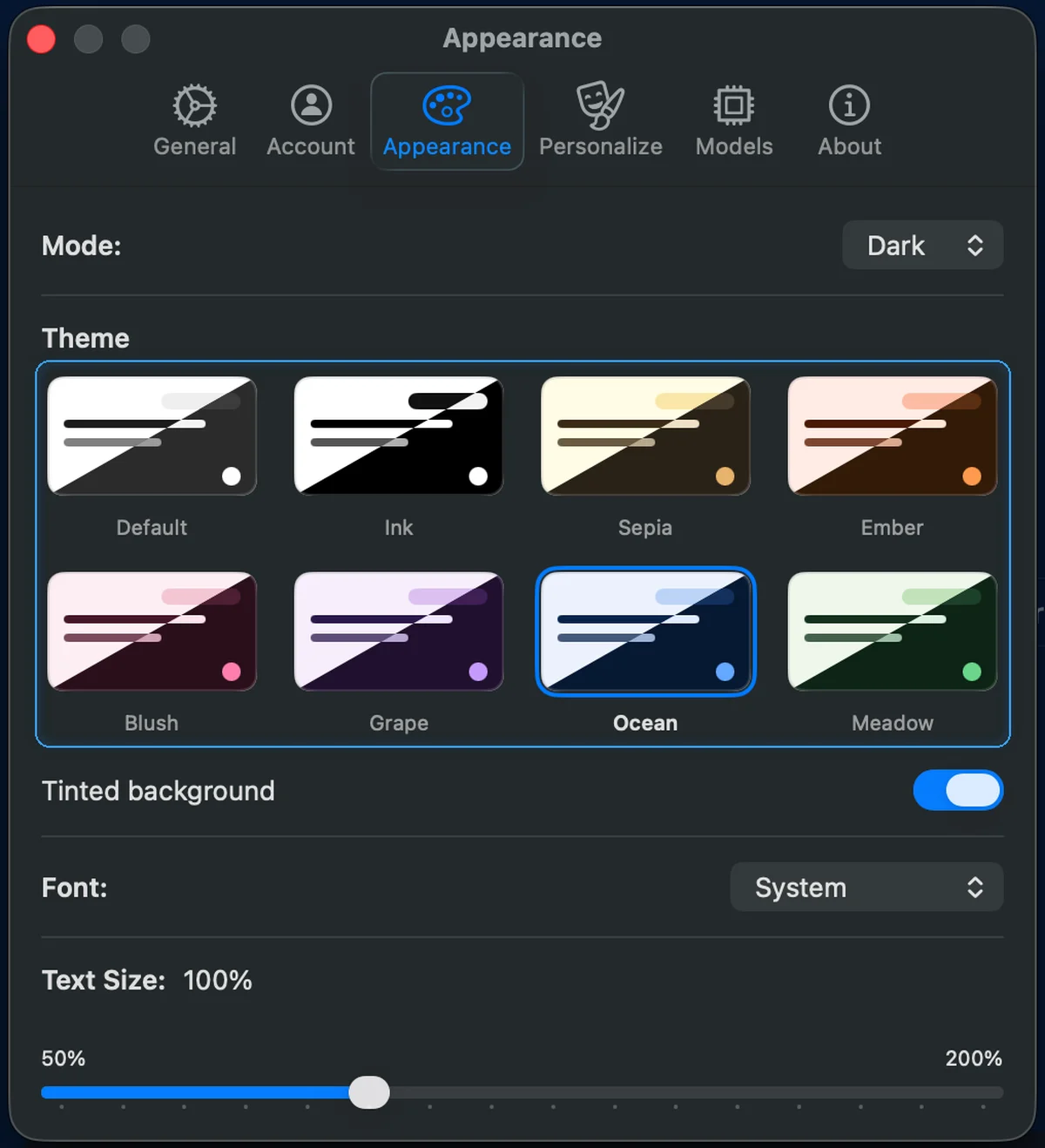
Open Appearance
- In the menu bar, choose Fello AI → Settings… (or press ⌘,). The settings window opens.
- Click the Appearance tab.
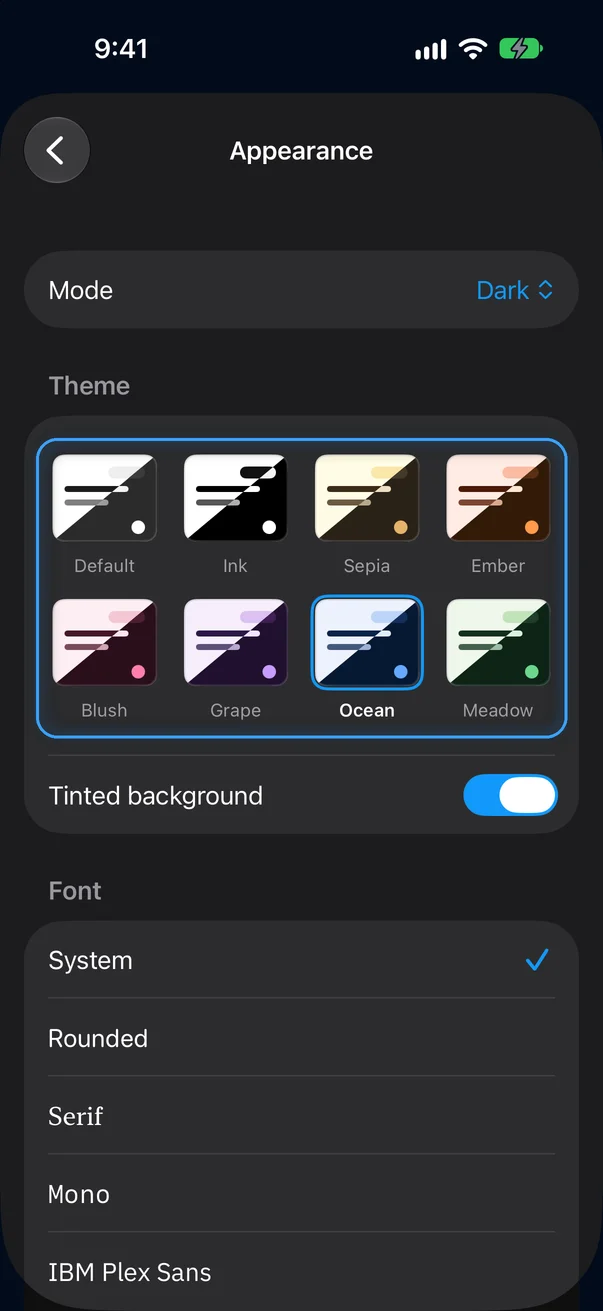
- In the Chats list, tap the gear (Settings). Settings opens.
- Tap Appearance.
Choose a mode, theme and font
Each control changes the app right away.
- Mode: Auto follows your system and is the default. Choose Light or Dark to set it yourself. The mode applies to the whole app.
- Theme: pick one of 8: Default, Ink, Sepia, Ember, Blush, Grape, Ocean or Meadow. A theme changes the page background, your message bubbles, text, links and the send button. Every theme except Default has its own light and dark colors.
- Tinted background: this switch is on by default. Turn it off for a plain background that keeps the theme's bubbles and send button. It isn't available for Default and Ink.
- Font: choose System (the default), Rounded, Serif, Mono or IBM Plex Sans. The font changes message text. Code stays monospaced so it's easy to read.
Make text bigger
In the Appearance tab, drag the Text Size slider anywhere from 50% to 200%. You can also use the keyboard while you chat:
- ⌘+ makes text bigger (View → Make Text Bigger).
- ⌘- makes text smaller (View → Make Text Smaller).
- ⌘0 goes back to normal (View → Actual Size).
Fello AI follows your iPhone's text size setting. Change it there, and the text in your chats changes too.
Good to keep in mind
- Changes apply instantly. There's no Save button, so you can switch back at any time.
- Plain background, same colors. If a tinted page is too much, turn off Tinted background and keep the theme's bubbles and send button.
- Themes apply to the main chat window. They don't change the Chat Bar, Bookmarks or Compare.
Was this guide helpful?
Thanks for letting us know.
Ask from any app with ⌥ Space